Hide Photos

image

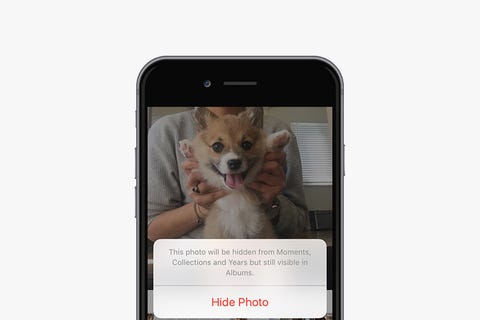
Sometimes you have photos in your camera roll that your mom wouldn't be proud of. 🙊 When you hand your iPhone over to someone else, they may swipe and see something you wouldn't want them to. Fortunately, you can prevent that from happening by hiding certain photos.

Open the photos app
Open the album where the photo(s) you want to hide reside
Tap Select at the top right
Select the photo(s) you want to hide
Tap the share icon at the bottom left
Tap the hide icon at the bottom right
Tap Hide Photo

Lexo më shumë
Thursday, June 13, 2019 0 comments

Custom Vibrations

image

You may already have custom ringtones for when certain friends and loved ones call, but that doesn't come in handy when you have your phone on silent though. Your iPhone lets you create and assign custom vibrations to specific contacts. Here's what you have to do:


  • Open the Settings app
  • Select Sounds & Haptics
  • Select Ringtone
  • Select Vibration
  • Tap Create New Vibration
  • Create a new vibration by tapping and holding however you want
  • Tap Stop in the bottom right
  • Tap Save in the top right
  • Name the vibration

After you create the custom vibration, here's what you need to do to assign it to a contact:


  • Open the Contacts app
  • Choose the contact you want to assign the custom vibration to do.
  • Tap Edit on the top right corner
  • Select Vibration
  • Choose the new vibration that you created earlier

Lexo më shumë
0 comments

Text Replacement


image


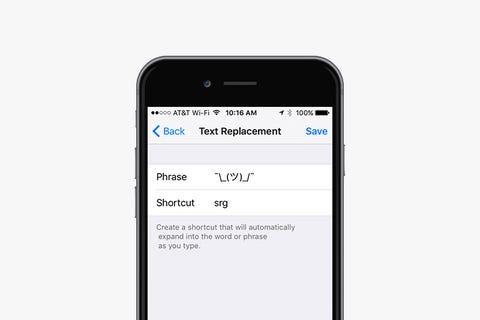
Sometimes typing things like email addresses, URLs, and, of course, shruggy ¯\_(ツ)_/¯ is a pain. Your iPhone has a text-replacement feature that lets you type just a few characters rather than spending forever typing the actual thing. Here's how you do it:


  • Open the Settings app
  • Tap General
  • Tap on Keyboard
  • Tap on Text Replacement
  • Tap the + on the top right corner
  • In the Phrase field, type the word or phrase you want to create a shortcut for
  • In the Shortcut field, type the text you want to be replaced by the phrase
  • Tap Save at the top right corner
  • Now, any time you type the shortcut on your keyboard, your iPhone will replace it with the phrase after you press the space bar.

Lexo më shumë
0 comments

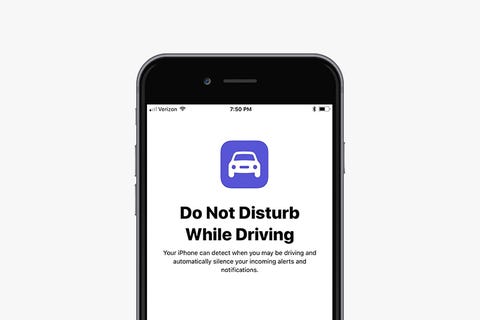
Do Not Disturb While Driving

image

Apple hopes to prevent accidents and cut down on distractions while driving with this new feature. It blocks incoming calls, texts, and notifications when your iPhone detects acceleration or connects to your vehicle's Bluetooth. When someone tries to get a hold of you, your iPhone will send an auto-reply message to let the person know you're driving. The feature can be disabled for passengers, and if there's an emergency and someone needs to reach you, they can still contact you if they respond to the text message with the word "urgent." To turn on the settings, just do the following:


  • Tap Settings
  • Tap Do Not Disturb
  • Tap Automatically if you want the setting to be enabled when detecting movement
  • Tap While Connected to Car Bluetooth if your car has Bluetooth
  • Tap Manually if you don't want the setting to enable automatically, and then add Do 
  • Not Disturb While Driving to Control Center (see previous tip above)
  • Tap Auto-Reply to customize and change the message, if you wish
  • Tap Auto-Reply To if you want to change who gets sent the auto-reply message. You 
  • can pick All Contacts, Favorites, Recent Contacts, or No-One.

Lexo më shumë
0 comments

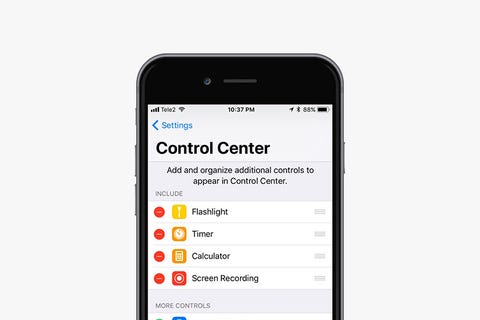
Customize Control Center

image

You may not have known that your Control Center settings are completely customizable. If you want, you can place the settings and features you use most right where you want them. Here's how:

Tap Settings
Tap Control Center
Tap Customize Controls
Tap the green "+" icon next to any item you want to add and the red "-" icon to delete items
Tap, hold, and slide the icon with three bars to reorganize the controls
Once you're done, tap Back at the top left of your screen
Swipe up from the bottom of your screen to access Control Center and get a feel for its new, customized layout.

Lexo më shumë
0 comments